Configure Thunderbird e-mail client
This note describes how to configure the Thunderbird e-mail client for use at the ELD. The described configuration is the one to use with the IMAP e-mail server.
It is assumed that you adapt an existing IMAP e-mail account. If you still have to create an e-mail account, you can do so at section 2.
1–Thunderbird. Open the Mail & Newsgroups Account Settings panel from the Edit menu
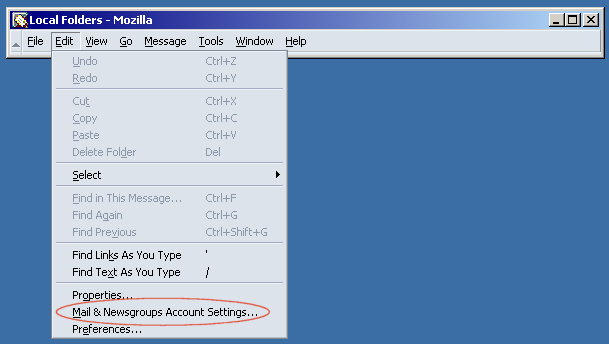
Select Mail & Newsgroups Account Settings from the Edit menu to bring up the Account Settings panel. Continue with section 2.
1–Thunderbird. Open the Account Settings panel from the Tools menu
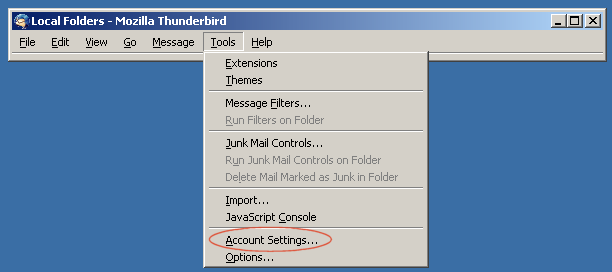
Select Account Settings from the Tools menu to bring up the Account Settings panel.
2. Create a new e-mail Account (optional)
At this point you may want to create a new e-mail account, unless you already have one that you want to adapt.
3. Open the account settings
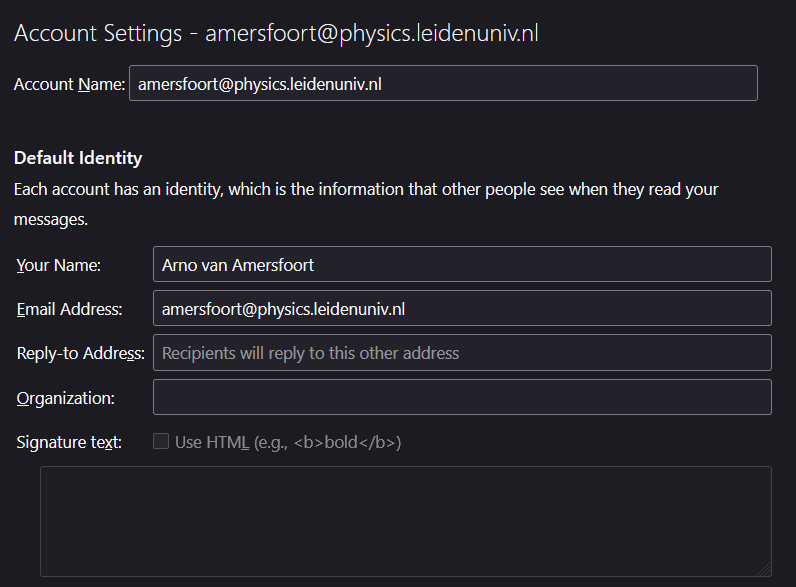
Press Server Settings on the Account Settings panel to bring up the following panel.
4. Adapt the Server Settings panel
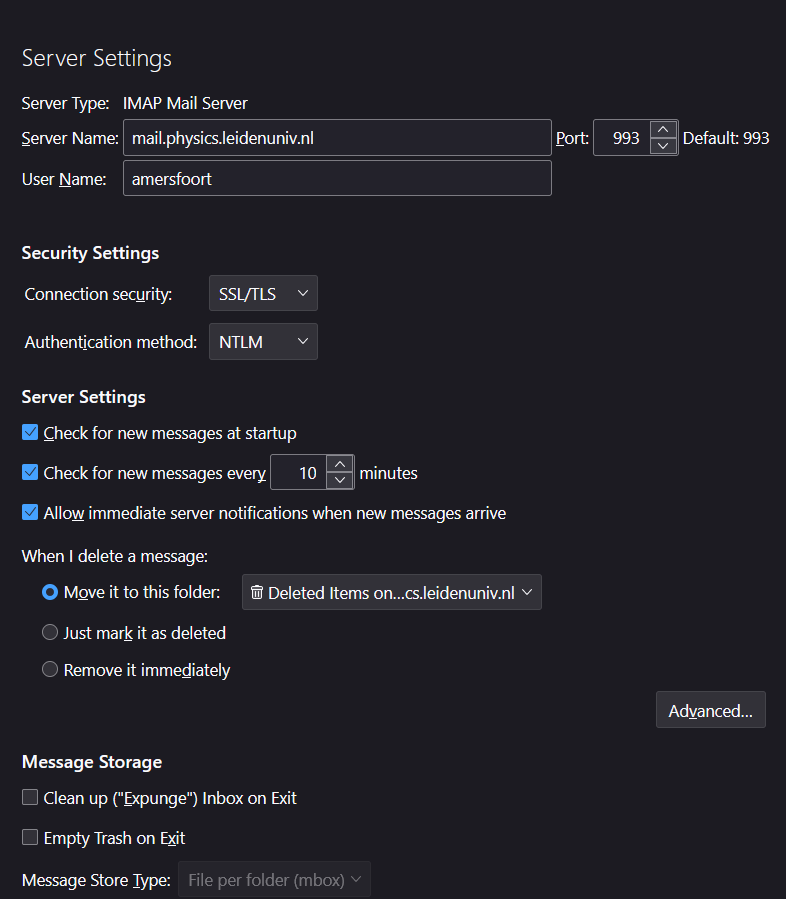
Adapt the following items on the Server Settings panel:
- Set Server Name: to mail.physics.LeidenUniv.nl
- Select Connection security: SSL/TLS
- Select Authentication method: NTLM
- Set Check for new messages every to 30 minutes
- Uncheck Empty Trash on Exit
Press Advanced... to continue with section five.
6. Remaining steps
Now close the Thunderbird application and start it again to build the list of e-mail folders.
This concludes the steps required to use imaps.eld.LeidenUniv.nl as your e-mail server.

